Add Document Tags
Use this guide to add tags to FormKiQ documents. Tags help organize documents and support metadata-driven search.
For structured metadata with validation, typed values, and stronger search behavior, use Attributes. Tags are useful for simple key-value metadata and legacy tag-based workflows.
Before You Begin
Confirm you have:
- A deployed FormKiQ environment. See Quick Start.
- cURL or an API client such as Postman.
- A JWT access token. See Get a JWT Authentication Token.
- At least one document in FormKiQ.
- Optional: jq for formatting JSON responses.
Variables Used
| Placeholder | Description |
|---|---|
HTTP_API_URL | FormKiQ API endpoint from the CloudFormation stack output, including https://. |
AUTHORIZATION_TOKEN | JWT access token used in the Authorization header. |
SITE_ID | Optional FormKiQ site ID. Use default unless your deployment uses multiple sites. |
DOCUMENT_ID | ID of the document to tag. |
TAG_KEY | Tag key to retrieve, such as category. |
FILE_NAME | Local file name to upload. |
FILE_CONTENT_TYPE | MIME type for the uploaded file, such as application/pdf. |
PRESIGNED_UPLOAD_URL | Temporary Amazon S3 upload URL returned by FormKiQ. |
The examples below use shell variables. Replace the values before running the commands:
export HTTP_API_URL="https://your-formkiq-api.example.com"
export AUTHORIZATION_TOKEN="your-jwt-access-token"
export SITE_ID="default"
export DOCUMENT_ID="your-document-id"
export TAG_KEY="category"
Step 1: Find the FormKiQ API Endpoint
Open the AWS CloudFormation console, select your FormKiQ stack, and open the Outputs tab.
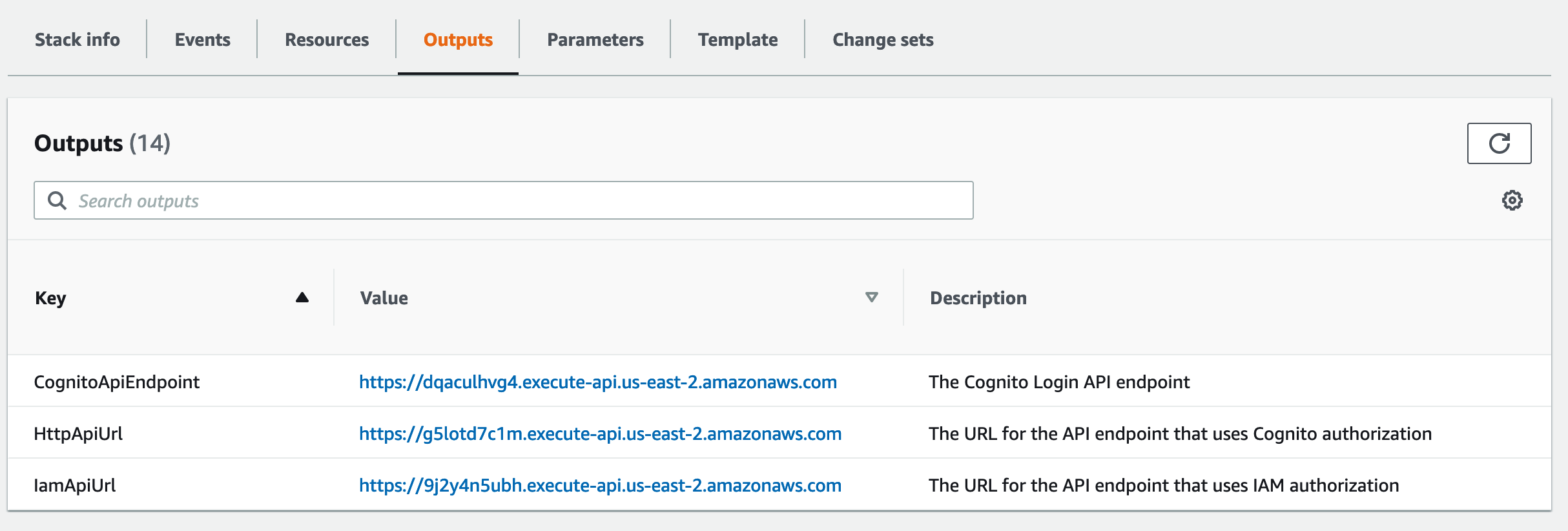
Use the HttpApiUrl output as HTTP_API_URL.
Step 2: Add a Tag to an Existing Document
Use POST /documents/{documentId}/tags to add a tag.
curl -X POST "${HTTP_API_URL}/documents/${DOCUMENT_ID}/tags?siteId=${SITE_ID}" \
  -H "Authorization: ${AUTHORIZATION_TOKEN}" \
  -H "Content-Type: application/json" \
  -d '{"key": "category", "value": "person"}'
A successful response confirms the tag was created.
{
  "message": "Created Tag 'category'"
}
Step 3: Add a Multi-Value Tag
Use values when a tag needs more than one value.
curl -X POST "${HTTP_API_URL}/documents/${DOCUMENT_ID}/tags?siteId=${SITE_ID}" \
  -H "Authorization: ${AUTHORIZATION_TOKEN}" \
  -H "Content-Type: application/json" \
  -d '{"key": "playerId", "values": ["111", "222"]}'
Step 4: Get a Specific Document Tag
Use GET /documents/{documentId}/tags/{tagKey} to retrieve one tag.
curl -X GET "${HTTP_API_URL}/documents/${DOCUMENT_ID}/tags/${TAG_KEY}?siteId=${SITE_ID}" \
  -H "Authorization: ${AUTHORIZATION_TOKEN}"
A successful response returns the tag.
{
  "key": "category",
  "value": "person"
}
Step 5: Add a Document with Tags
You can include tags when creating a document.
curl -X POST "${HTTP_API_URL}/documents?siteId=${SITE_ID}" \
  -H "Authorization: ${AUTHORIZATION_TOKEN}" \
  -H "Content-Type: application/json" \
  -d '{"path": "test.txt", "contentType": "text/plain", "content": "This is sample content", "tags": [{"key": "category", "value": "person"}]}'
A successful response returns the created documentId. The response may also include the siteId.
{
  "documentId": "b18e0d3b-48cb-4589-ab5d-f19e27b44f05",
  "siteId": "default"
}
Step 6: Add Tags During a Large Document Upload
For larger files, include tags when requesting the presigned upload URL.
curl -X POST "${HTTP_API_URL}/documents/upload?siteId=${SITE_ID}" \
  -H "Authorization: ${AUTHORIZATION_TOKEN}" \
  -H "Content-Type: application/json" \
  -d '{"path": "sample.pdf", "contentType": "application/pdf", "tags": [{"key": "category", "value": "person"}]}'
The response includes a presigned upload URL, a documentId, and may include headers that must be sent to Amazon S3.
{
  "url": "https://formkiq-core-dev-documents-XXXXXX.s3.us-east-2.amazonaws.com/05c1dc43-e9f3-4bb5...",
  "documentId": "05c1dc43-e9f3-4bb5-9732-077c02dac2c9",
  "headers": {}
}
Upload the file to the returned URL. If the response includes headers, send those headers exactly as returned.
curl -v -H "Content-Type: FILE_CONTENT_TYPE" \
  --upload-file FILE_NAME \
  "PRESIGNED_UPLOAD_URL"
If the response includes S3 headers, add each returned header to the upload request:
curl -v \
  -H "Content-Type: FILE_CONTENT_TYPE" \
  -H "RETURNED_HEADER_NAME: RETURNED_HEADER_VALUE" \
  --upload-file FILE_NAME \
  "PRESIGNED_UPLOAD_URL"
Verify the Result
Retrieve the tag or search for the tag value.
curl -X GET "${HTTP_API_URL}/documents/${DOCUMENT_ID}/tags/${TAG_KEY}?siteId=${SITE_ID}" \
  -H "Authorization: ${AUTHORIZATION_TOKEN}"
Troubleshooting
| Problem | Likely cause | What to check |
|---|---|---|
401 Unauthorized | Token is missing or expired. | Get a new JWT access token. |
404 Not Found | The document ID or tag key does not exist. | Confirm the DOCUMENT_ID and TAG_KEY. |
| Tag is not returned in search | Search criteria do not match the stored tag. | Confirm whether the tag uses value or values. |
| Upload with tags fails | Request body, upload URL handling, or returned headers are incorrect. | Check JSON formatting, use the returned presigned URL exactly, and include returned headers. |
| Tag is not found in a multi-site deployment | The request used the wrong site. | Confirm SITE_ID or omit it only when using the default site. |