Using FormKiQ Web
FormKiQ Web is the browser application included with every FormKiQ edition. People use it to store, find, and work on documents. Administrators use it to configure metadata, automation, access, and workspaces without calling the API directly.
This guide describes FormKiQ Web v4.3.8. Screenshots show a FormKiQ-branded Enterprise v1.19.2 deployment with fictional sample data; available features vary by edition and configuration. Select a screenshot to open it at full resolution. For hosting, the console URL, and login troubleshooting, see FormKiQ Web (Document Console).
| If you want to | Read |
|---|---|
| Upload, find, edit, review, and manage documents | Working with Documents |
| Configure attributes, schemas, workflows, intake, and lifecycle policies | Orchestration |
| Manage users, groups, workspaces, API keys, and the activity log | Administration |
What You See Depends on Three Things
Two people signed in to the same deployment can see different screens. Before reporting something as missing, check:
- Edition. Workflows, queues, versions, checkout, legal hold, retention, reminders, reports, and the activity log are not available in FormKiQ Core. See Editions and Licensing.
- Installed modules. Actions such as Send for eSignature or AI prompt tools appear only when the related module is installed and enabled for the workspace.
- Your permissions. Menu items and whole sections are hidden when your groups do not grant the required permission in the current workspace. A workspace administrator can also hide individual actions and tabs for specific groups. Hiding an item in the interface does not change what the API allows; see Security.
Sign In
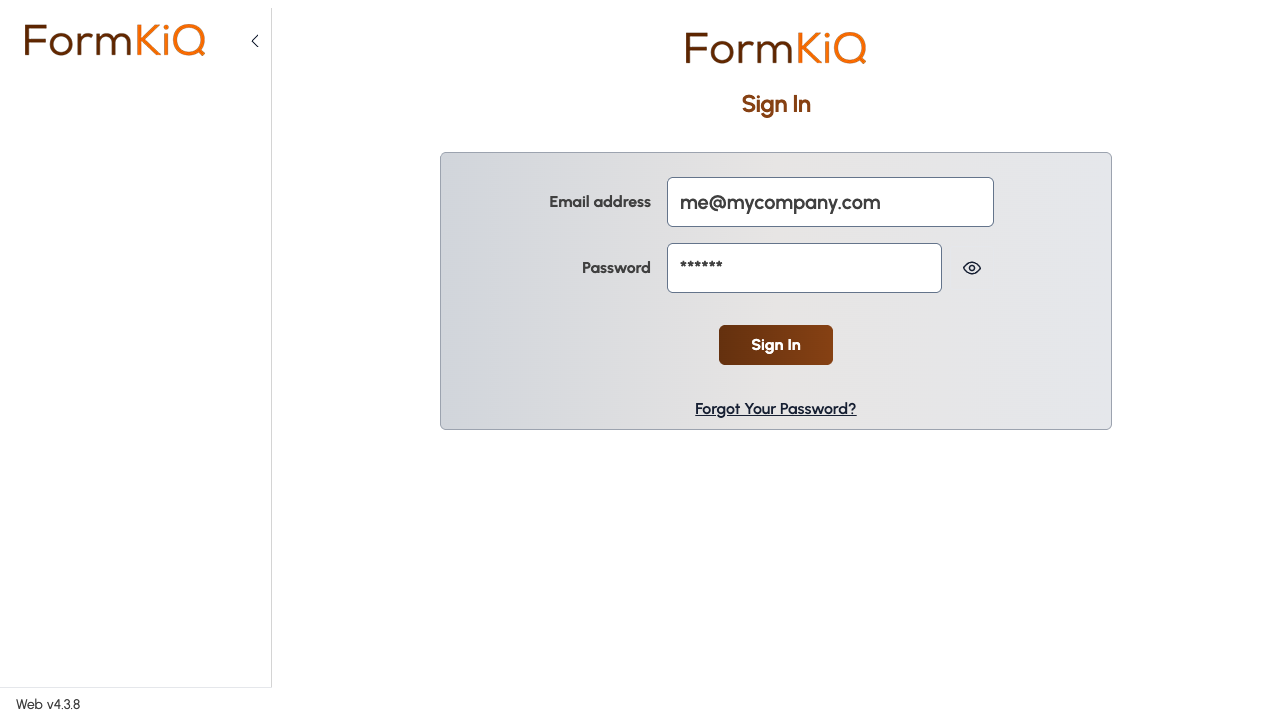
Open the console URL for your deployment and sign in with your email address and password. Depending on how the deployment is configured, the sign-in page can also offer Single Sign-On, and it can redirect to your identity provider automatically.
- First sign-in. New users receive an email with a link to set their password.
- Forgotten password. Use Forgot Your Password? on the sign-in page to request a reset.
- Multi-factor authentication. When MFA is required for your account, the first sign-in shows a QR code to scan with an authenticator app such as Google Authenticator, Authy, or Microsoft Authenticator. Later sign-ins ask for the 6-digit code from that app.
- Session expiry. FormKiQ Web warns you before your session ends and offers Renew session. Save your work first if the session cannot be renewed.
Layout
Sidebar
The sidebar is the main navigation. It can be collapsed to icons.
| Section | What it contains |
|---|---|
| New, Upload File, and Upload Folder | Create a folder or document, or upload files and folders, in the current location. |
| Documents & Folders | Default Workspace or My Documents (when available), the current workspace, Switch Workspace, Queues, and Trash. |
| Reports | Preset document reports: Checked Out Documents, Legal Hold Documents, and Retention and Disposition Policies. Commercial editions only. |
| Modules | Entry points for installed Business Solutions and other web modules, such as Contract Management. |
| Orchestration | Metadata, automation, intake, lifecycle, and monitoring tools. |
| Administration | Users, groups, workspaces, organization settings, API keys, and the activity log. |
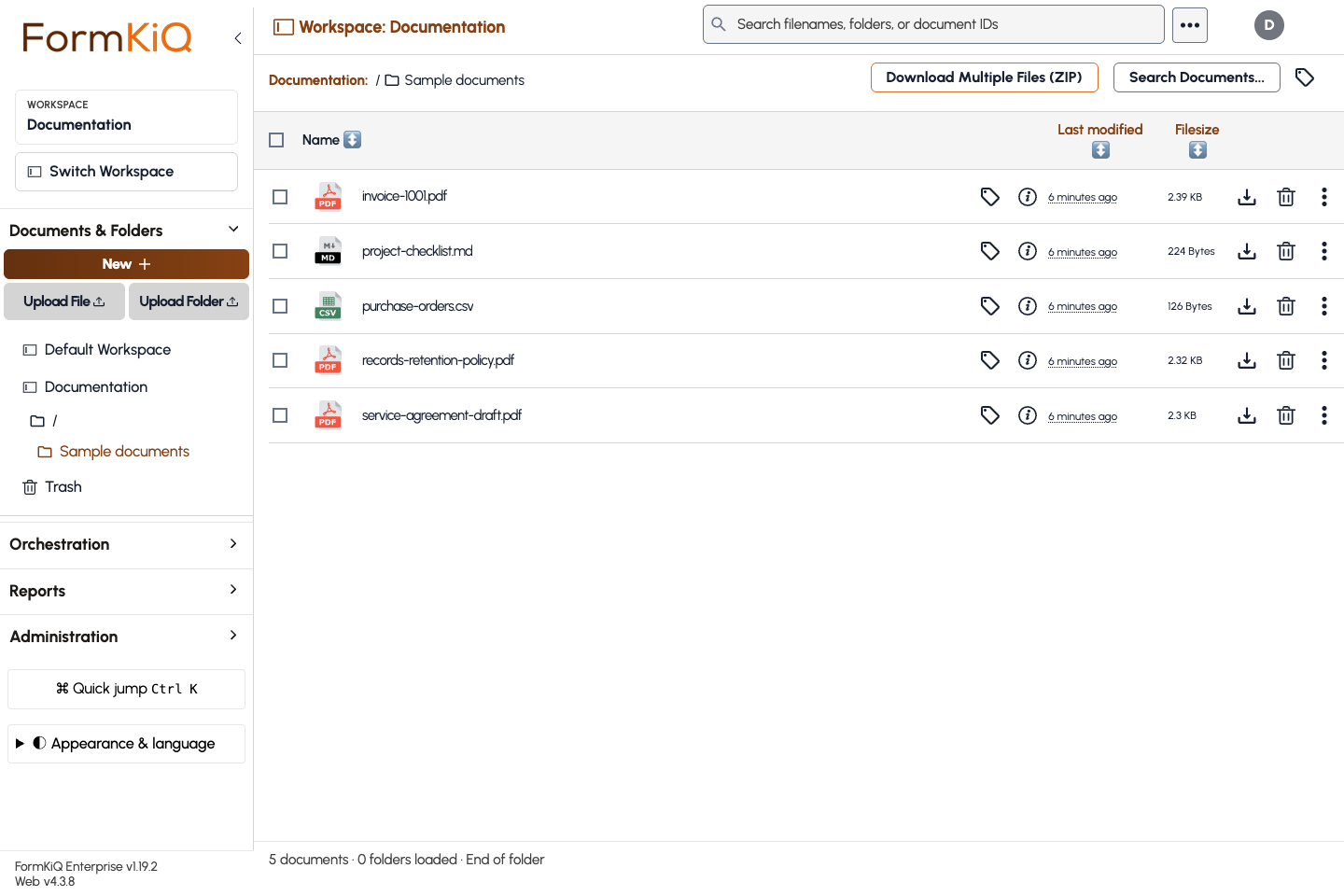
The bottom of the sidebar shows the FormKiQ edition and version, the web version, and the enabled platform and web modules. Include these when you contact support.
Workspaces
A workspace is a FormKiQ site: a separate set of documents, metadata, and settings. The sidebar always shows the current workspace.
- Default Workspace is the shared default site; it is not a personal workspace.
- When personal workspaces are enabled, My Documents opens your personal workspace. It follows the settings of the default workspace.
- Use Switch Workspace to move to another shared workspace you have access to.
- Most Orchestration and Administration screens act on one workspace at a time. Check the workspace name in the page heading before you save a change.
Top Bar
- Search on document views. Use the search field to find filenames, folders, or document IDs. Select Search Documents... or Advanced search to build a search on attributes.
- Notifications. The bell opens your in-app notifications, such as reminders and review requests, where notifications are enabled.
- Account menu. Shows the workspaces you can open, your group memberships, the roles in use, and Sign out.
- Command palette. Press Ctrl K to jump to a screen by name.