Orchestration
Orchestration in the sidebar is where you configure how documents are described, processed, routed, and kept. These tools use FormKiQ APIs and workspace configuration. Some policies are applied by the web application itself; see the retention assignment and notification sections below before relying on them for changes made through other clients.
Orchestration settings belong to one workspace. Confirm the workspace named in the page heading before you make a change.
The tools you see depend on your edition, the installed modules, and your permissions in the workspace. FormKiQ Core shows the data model tools, intake webhooks, processing activity, and developer tools. Commercial editions add rules and workflows, extraction, and document lifecycle.
Overview
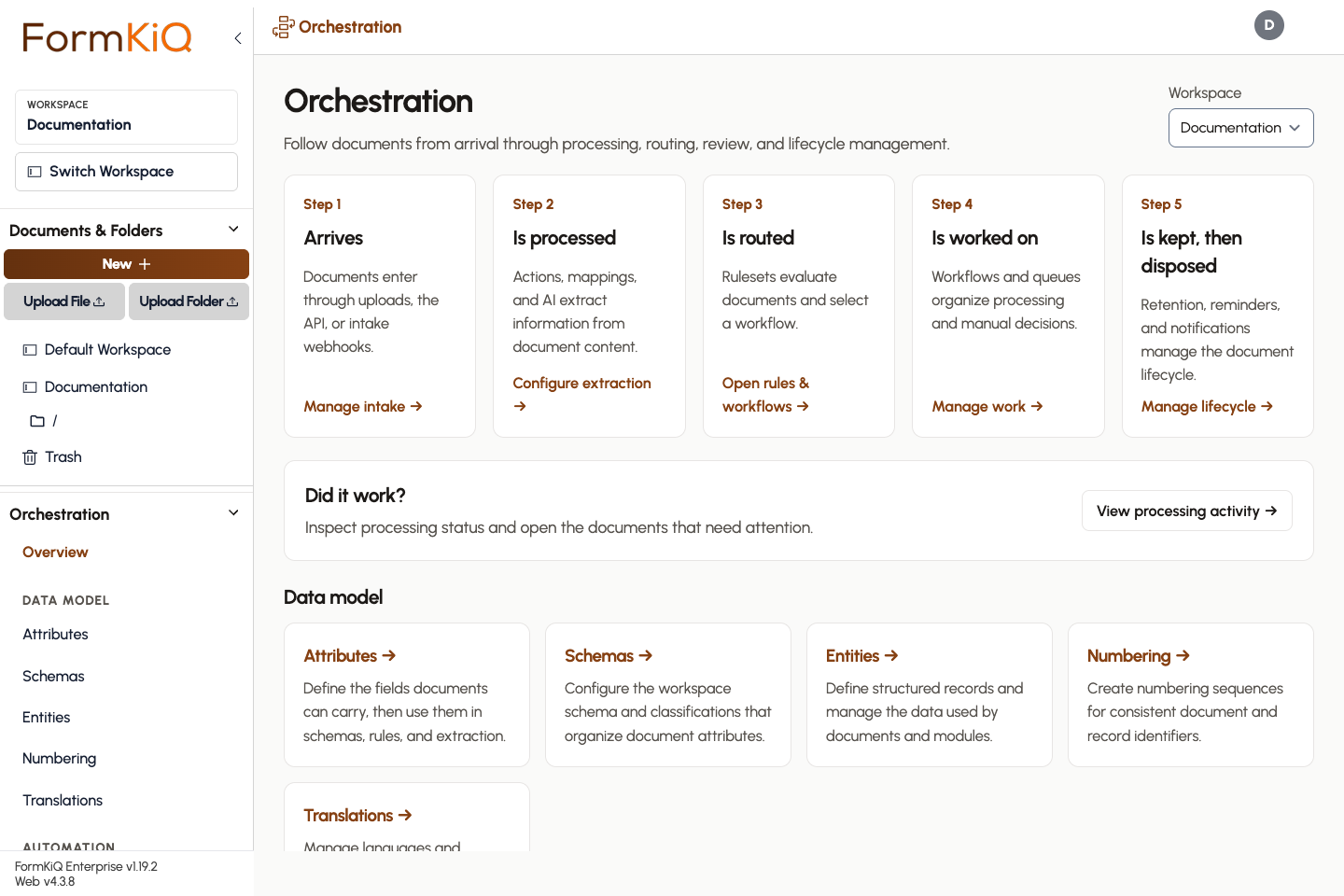
The Overview page lays out the journey a document takes and links each stage to its tools:
- Arrives — through upload, the API, or an intake webhook.
- Is processed — by document actions such as OCR, malware scanning, and extraction.
- Is routed — rulesets evaluate the document and select a workflow.
- Is worked on — in workflow steps and review queues.
- Is kept, then disposed — under retention, reminder, and notification policies.
A stage marked Not available in this edition needs a commercial edition.
Data Model
| Tool | Use it to | Concept page |
|---|---|---|
| Attributes | Define the fields documents can carry, see whether an attribute is in use, and manage allowed values. | Attributes |
| Schemas | Set the workspace schema that applies to every document, and create classifications that apply to specific documents. | Schemas |
| Entities | Define entity types and manage the structured records that documents and modules refer to. | Entities |
| Numbering | Create numbering sequences that assign consistent identifiers to an attribute. | — |
| Translations | Manage languages and translated labels for the workspace. | Locales |
Numbering Sequences
A numbering sequence fills an attribute with the next number in a pattern, for example a contract or case number.
- Pattern accepts the tokens
{YEAR}and{SEQUENCE}. - Start at and Sequence padding control the first number and its width.
- Reset can be Never or Yearly, evaluated in the selected Timezone.
Changing a sequence does not reclaim numbers that were already allocated.
Automation
Rules & Workflows
Commercial.
- Rulesets evaluate documents and start the workflow selected by the first matching rule. See Rulesets.
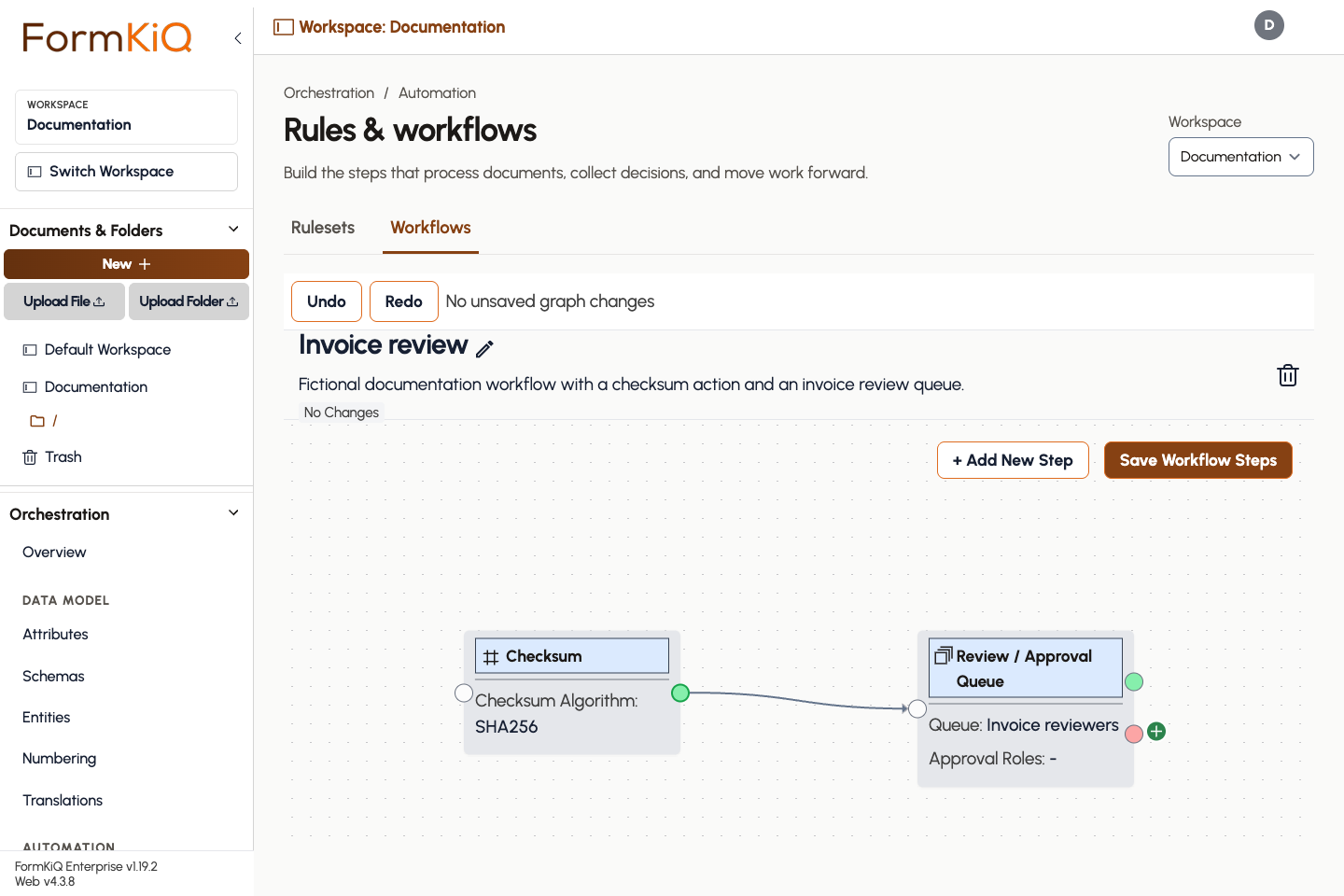
- Workflows define the steps that process documents and collect decisions. The workflow designer shows steps as a graph; use + Add New Step to extend it and Save Workflow Steps to publish your changes. The designer keeps a local draft while you work and supports undo and redo. See Workflows.
- Queues hold documents waiting for a person. Create a queue here, then reference it from a workflow step. A queue cannot be deleted once a document has used it.
Extraction
Commercial.
- Mappings copy values from document content into attributes. See Mappings.
- LLM prompts define the prompts used to classify documents and extract structured information. This tab appears when AI data classification is installed; see AI Processing and Analysis. A prompt can reference a Markdown document as its system prompt, pinned to a specific revision.
Intake Webhooks
An intake webhook gives an external system or web form a URL to post to. Each post becomes a new document in the workspace.
- Open Intake webhooks and select Create new.
- Enter a name and save.
- Copy the webhook's URL from the list and give it to the sending system.
For how webhook URLs, expiry, and public access work, see Webhooks.
Document Lifecycle
Commercial. The tabs shown depend on the edition.
Retention
Use Retention to define how long documents are kept and what happens afterward.
- Disposition Settings choose the action taken when a document reaches its disposition date: Soft Delete (moves to trash) or Permanent Delete (unrecoverable). You can also remove soft-deleted documents automatically after a number of days.
- Retention and Disposition Policies each define a start date source, a retention period, and an optional disposition date. A policy can retain without disposing, or dispose without a retention period.
- Retention Policy Assignment Rules assign a policy to documents by folder, including subfolders, or by an exact attribute value. Use Preview before reconciling existing documents. Documents that already have a different policy are listed separately and are not overwritten.
If the page reports that the RetentionPolicy entity type is missing, a platform administrator must create it once from Administration → Workspaces → Processes.
Assignment rules are applied by FormKiQ Web. They run for uploads, moves, and metadata changes made in the web application, and when someone runs reconciliation. Documents added or changed directly through the API are picked up at the next reconciliation.
Reminders
A reminder policy sends a notification relative to a date attribute on a document, such as an expiry or renewal date.
- Choose the Date source attribute. It cannot be changed after the policy is created.
- Set how long before the date the first reminder is sent, and whether it repeats.
- Choose Email or In-app, add at least one CC or BCC recipient, and write the subject and text. Template variables resolve from document attributes; a variable with no value is left unchanged in the message.
Notifications
Notification policies choose whether supported events also send email, and to which additional recipients. In-app notifications remain on. Supported events include document checkout and release, legal hold placed and removed, and agreement review events.
These policies apply to actions completed in FormKiQ Web. The same change made directly through the API does not send the policy email.
Email delivery uses the sender configured for the workspace. See Notifications & integrations.
Monitor
Processing Activity
Processing activity lists document actions by status so you can find work that failed or is still running.
- Choose a status.
- Open More Details on a document to see its actions.
- After fixing the cause, select Retry Actions.
For queue-level failures behind a stuck action, see Dead-Letter Queues.
Developer Tools
- API explorer lets you call API operations with your current sign-in and workspace. It is a quick way to try a request before writing code. See the API Reference.
- Examine a file inspects a PDF and reports its properties, including form field names and values. Use it to find field names before building a mapping or a document-generation template.