Working with Documents
This page covers the everyday document tasks in FormKiQ Web. It assumes you can sign in and know which workspace you are in; see Using FormKiQ Web if not.
Some actions below are marked Commercial. They are not shown in FormKiQ Core. Any action can also be hidden when your permissions do not allow it or when an administrator has hidden it for your group.
Browse Documents and Folders
Open Default Workspace, a shared workspace, or My Documents when personal workspaces are enabled. The list shows folders first, then documents, with the name, last-modified date, and file size.
- Click a folder to open it. Click a document to open the viewer.
- Use View details on a row to open the info panel beside the list.
- Badges on a row show state at a glance: Checked Out, Legal Hold, Review, and Unpublished.
- When a document has controlled revisions, use Show revisions to expand them under the document.
Add Documents
Upload Files or a Folder
- Open the folder that should receive the files.
- Select Upload File or Upload Folder in the sidebar. You can also drag files or a folder onto the document list.
- Review the upload queue, then select Upload.
Things to know:
- Dragging a folder keeps its subfolder structure inside the current folder.
- Dropping onto a subfolder uploads into that subfolder. Dropping a file onto an existing document uploads it as a new version of that document.
- Duplicates. If a file with the same path already exists, choose Save as New Version or Save a Copy for each one, or apply one choice to all.
- Upload in background lets you keep working. Progress appears in the panel at the bottom left.
- Processing options. Where the features are installed, the upload dialog can run a malware scan, OCR, a SHA-256 checksum, full-text indexing, and document-type detection on the new files.
- An uploaded document may not appear immediately. It can be waiting on processing such as a malware scan, or you may not have permission to view it in that folder.
A workspace administrator can restrict which file types a workspace accepts. See Administration.
Create Something New
Select New in the sidebar to create an item in the current location:
| Option | Result |
|---|---|
| Create a New Document Folder | An empty folder. FormKiQ Web allows up to 10 levels of nested folders. |
| Markdown Document or Word Document | A new document that opens in the built-in editor. |
| Add a Deeplink Document | A document record that points to content stored elsewhere. See Deep Links. |
| Create a Dossier | A container record of a configured dossier type that groups related documents. |
Find Documents
Quick Search
Type in Search Documents... at the top of the page to search the current workspace.
Advanced Search
Open advanced search to build conditions on attributes:
- Each condition uses one attribute and one comparison: Equal to, One of, Begins with, or Range.
- With Match all conditions, put the most specific condition first. String comparisons are case-sensitive.
- Results load in batches. Select Load more results to continue.
If a search fails with several conditions, the workspace may need a composite key for that attribute combination. See Search and Multi-Attribute Search.
View and Edit a Document
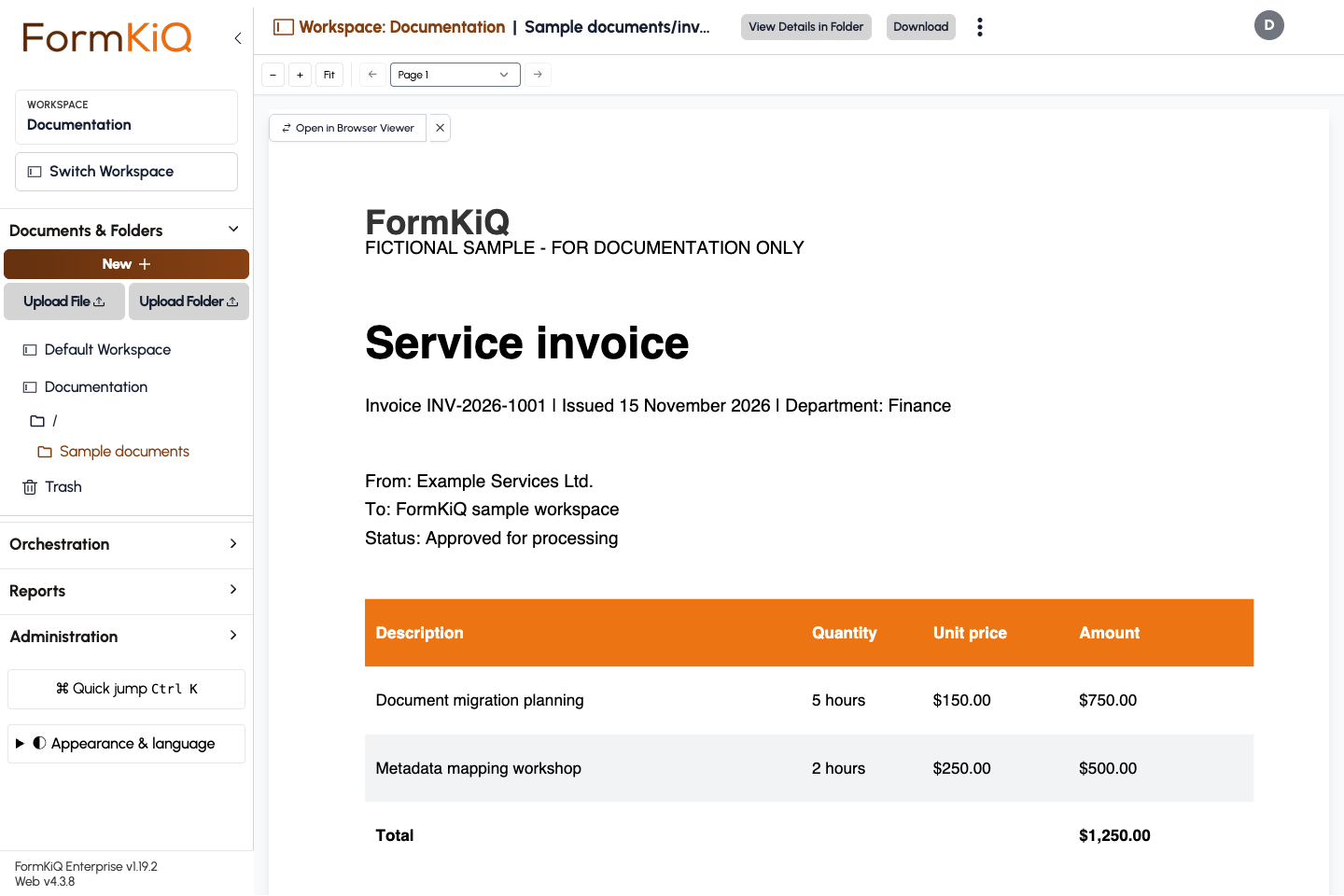
Opening a document shows it in the viewer. FormKiQ Web previews PDFs, images, Word documents, spreadsheets, CSV, text files, and email messages in the browser.
- Edit is available for plain text, Markdown, XML, and Word (
.docx) documents. Saving creates a new version where versioning is enabled. - Download saves the stored file.
- Resize is available for images.
- When you open an older version, a banner says Viewing previous version with a link back to the current one.
The Info Panel
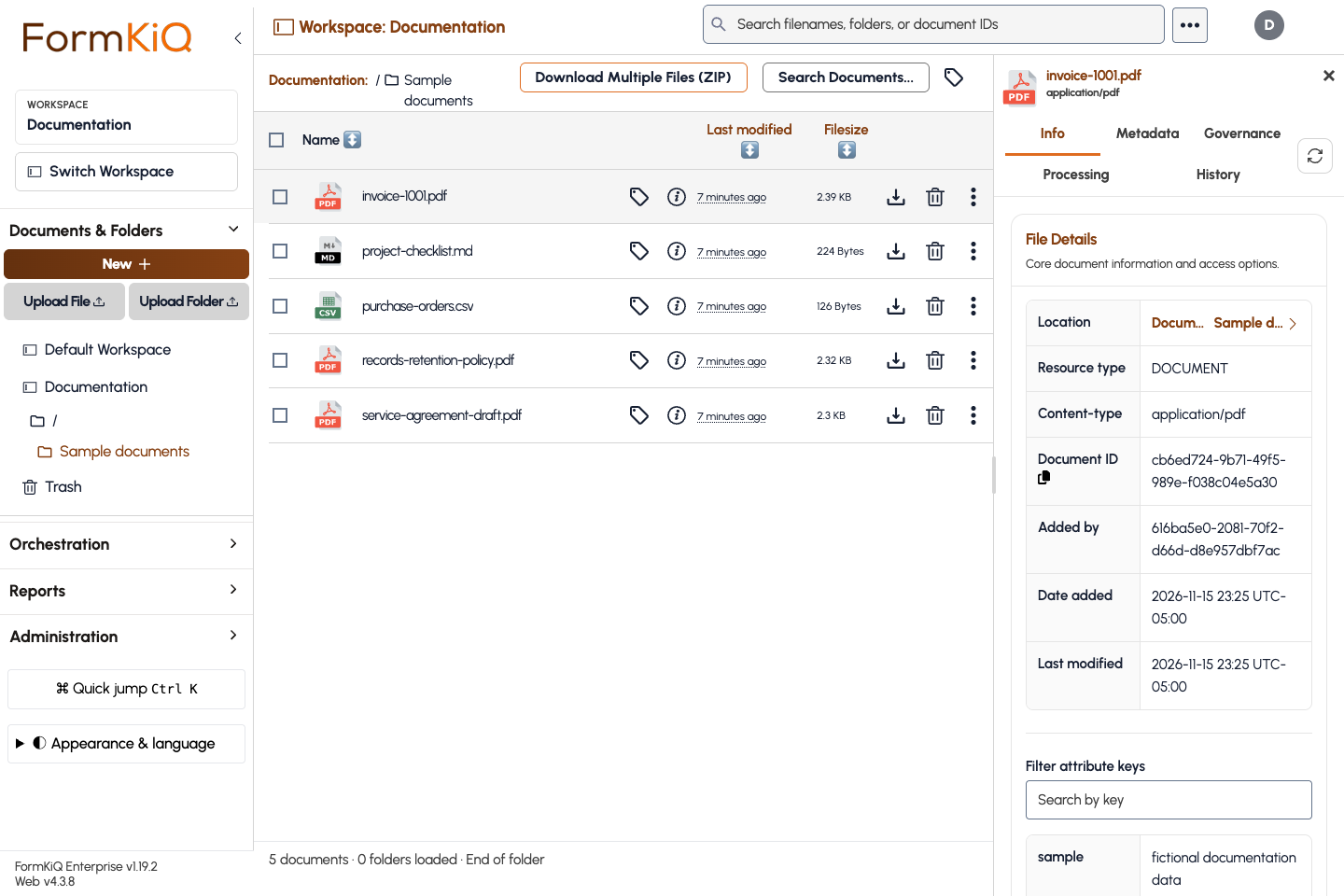
The info panel shows everything FormKiQ knows about the selected document. Its tabs are:
| Tab | Contents |
|---|---|
| Info | Standard metadata such as name, path, content type, size, and a Copy Link button. |
| Metadata | Classification, attributes, tags, and relationships, with add/edit for each. Not shown to read-only users. |
| Governance | Content sensitivity, retention and disposition status, checkout state, and legal hold. Commercial. |
| Processing | Malware scan status, OCR and full-text availability, AI results, and Run Action... to start a document action. |
| History | The activity trail for the document. Commercial. |
Administrators choose which tabs, attributes, and tags each group sees.
Document Actions
Open the actions menu on a document row, or in the viewer, to act on one document.
| Action | What it does |
|---|---|
| Download, Edit, Move, Rename | Basic file operations. Move and rename change the document path, not its ID. |
| Versions | List earlier versions, view or download one. Commercial. See Document Versioning. |
| Workflows | Show the workflows the document is in and their status. Commercial. |
| Actions | Show the document's processing actions and their status. Commercial. |
| Submit for review | Send the document into a workflow that has an approval queue. Commercial. |
| Send for eSignature | Prepare a signing request. Requires the E-Signature module and a supported file type. |
| View metadata / Add/edit metadata | Open the document's attributes and tags. |
| Document Relationships | Link the document to related documents. |
| Classifications | Assign a classification schema. See Schemas. |
| Set Retention Policy | Assign a retention and disposition policy. Commercial. |
| Reminders | View reminder assignments and notification history. Commercial. |
| Check out / Check in | Reserve the document for your changes. Commercial. |
| Place legal hold / Remove legal hold | Block changes and deletion. Requires governance permission. Commercial. |
| Delete | Move the document to the trash, or delete it immediately when soft delete is not enabled (shown as Delete (No Undo)). |
| PURGE DOCUMENT | Permanently remove the document and its versions. Requires governance permission. |
Work on Several Documents at Once
Select documents with the checkboxes, then use the bulk actions: Move Selected, Delete Selected, Purge Selected, and Create Archive.
Create Archive packages the selected documents into a ZIP file. The archive is prepared in the background; you can keep working and collect it from the pending download indicator in the list header when it is ready.
Check Out, Check In, and Legal Hold
Commercial.
- Check out reserves a document so other users cannot change its content. Enter the reason for the checkout. The row shows Checked Out.
- Check in releases it. Enter a summary of your changes.
- A user with governance permission can Override checkout when the person who checked a document out is unavailable. A reason is required and recorded.
- Place legal hold prevents edits, deletion, and checkout until someone with governance permission removes the hold. A matter reference and reason are required when placing and when removing a hold.
For the API behind these actions, see Versioning, Checkout, and Legal Hold.
Review and Approve Documents
Commercial.
Reviews in FormKiQ Web are driven by workflows and queues.
- On the document, select Submit for review and choose a workflow. The workflow must contain a queue step; otherwise FormKiQ Web asks you to choose another.
- The document appears in that workflow's queue. Reviewers open Queues in the sidebar and select the queue.
- A reviewer opens the document from the queue, selects Review, adds optional comments, and chooses Approve or Reject. The workflow then continues along the matching branch.
If a document is already waiting in a queue, Submit for review lists those queues instead of starting a second review.
Business Solutions such as Contract Management use a richer review model with reviewer groups and recorded decisions. See Document Reviews.
Folders
Open the actions menu on a folder to Delete it. A folder must be empty before it can be deleted. To move a folder and its contents to a new path, use the folder move API.
Users with governance permission also see Folder Permissions, which limits what a role can do inside that folder. A folder with no entries follows each role's normal workspace permissions. After changing folder permissions, sign in as a member of each affected group and confirm the result, including groups you did not list. See Folders for how permissions are evaluated.
Trash and Restore
When soft delete is enabled, Delete moves a document to Trash in the sidebar.
- Filter the trash by deletion date, or use the quick ranges Today, This Week, and This Month.
- Restore returns a document to its original path. Restore Selected restores several.
- Delete Permanently removes it for good.
A retention policy can also remove trashed documents automatically after a set number of days. See Soft Deletes.
Troubleshooting
| Problem | What to check |
|---|---|
| An action is missing from the menu | Your edition, the installed modules, your permissions in this workspace, and whether an administrator has hidden the action for your group. |
| Edit, Move, or Delete is unavailable | The document may be checked out by someone else or on legal hold, or the folder's permissions may not include write or delete for your role. |
| An uploaded file does not appear | Wait for processing to finish, refresh the list, and confirm you have read access to the folder. Check Orchestration → Processing activity for failed actions. |
| An upload is rejected | The workspace may restrict file types or have reached its document or storage limit. Ask a workspace administrator. |
| Submit for review shows no usable workflow | The workflow needs a queue step. See Workflows. |
| Search returns nothing for a value you can see | String comparisons are case-sensitive, and the attribute must be searchable. See Search. |