Microsoft Entra ID
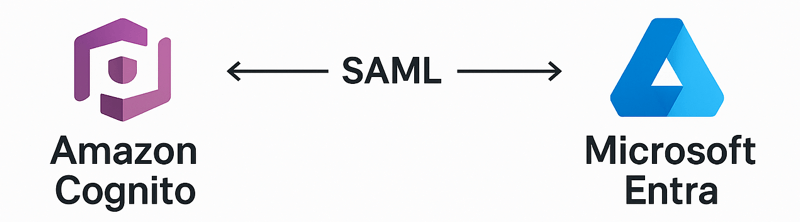
This tutorial shows how to integrate Microsoft Entra ID as the identity management provider for your FormKiQ installation.
What You Will Build
You will create a Microsoft Entra Enterprise application, configure SAML single sign-on, connect it to Amazon Cognito, and map group claims so FormKiQ can authorize users based on their identity provider groups.
Before You Begin
- Access to a FormKiQ Essentials, Advanced, or Enterprise installation, including administrative access.
- Administrative access to Microsoft Entra ID.
- Access to the AWS account that hosts the FormKiQ Cognito User Pool.
- The FormKiQ
CognitoUserPoolId, console URL, and Cognito domain.
Workflow Overview
- Collect FormKiQ Cognito values.
- Create an Entra Enterprise application.
- Configure SAML URLs and group claims.
- Add the SAML identity provider in Amazon Cognito.
- Configure Cognito managed login.
- Optionally map Entra group IDs to FormKiQ group names.
- Verify login from the FormKiQ console.
Step 1: Collect FormKiQ Cognito Values
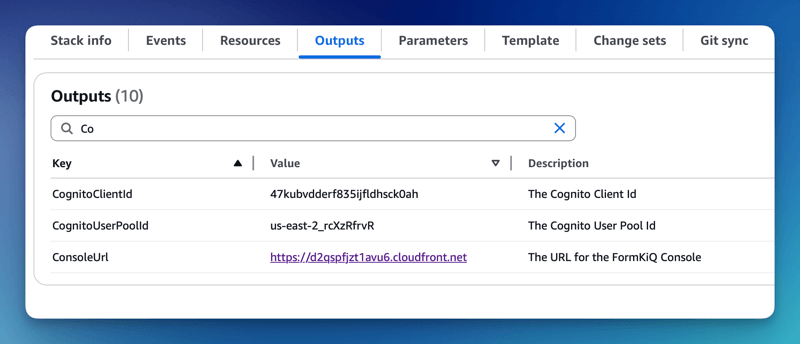
You will need these specific configuration values:
-
CognitoUserPoolId
-
Console URL
-
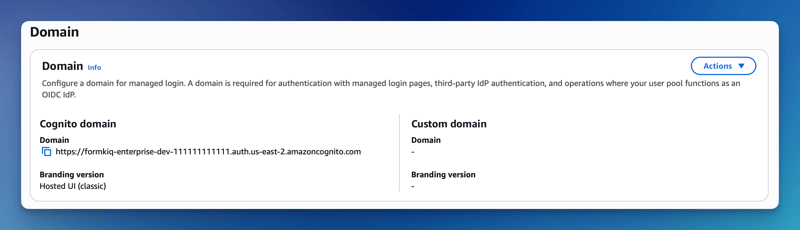
Cognito domain
The CognitoUserPoolId and Console URL can be found in the Outputs tab of your FormKiQ CloudFormation installation
The Cognito domain can be found by clicking on the Cognito User Pool found on the Cognito Console. Then under the Branding menu, select Domain.
Step 2: Configure Microsoft Entra ID
The next step is to create an Enterprise application in Microsoft Entra ID. This application will be connected to Amazon Cognito and will provide authentication for the users.
Add an Azure Enterprise Application
To configure the Enterprise Application:
-
Login into the Azure Portal and open the Microsoft Entra ID service
-
Select Enterprise applications from the left menu and click New application
-
Select Create your own application, and give your application a name, and then click Create
Single Sign-On configuration
Now that the application is created, we will be configuring Single sign-on using SAML.
- Select Single sign-on from the menu and then choose the SAML single sign-on method
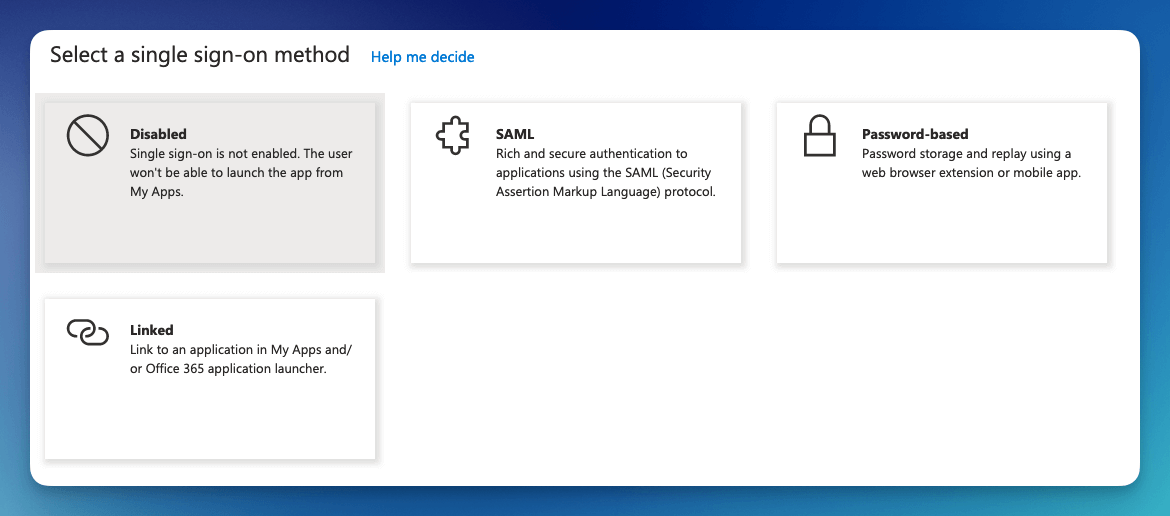
Once the single sign-on is created, you will need to fill in the Identifier (Entity ID) and the Reply URL.
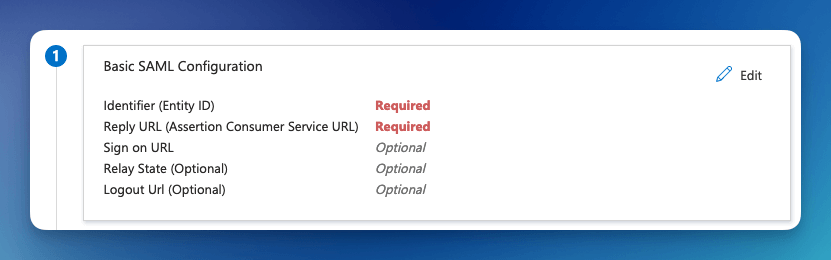
The format of the Identifier (Entity ID) is:
urn:amazon:cognito:sp:<CognitoUserPoolId>

eg: urn:amazon:cognito:sp:us-east-2_MEhz4EzAZ
The Reply URL is: <Your Cognito Domain>/saml2/idpresponse, for example:
https://formkiq-enterprise-dev-1111111111111.auth.us-east-2.amazoncognito.com/saml2/idpresponse
Group Claims
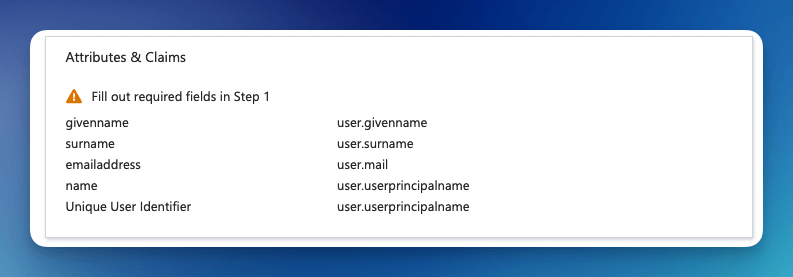
Next, we need to configure the Attributes & Claims for the SAML response. The default attributes will work well, but we will need to add a group claim so FormKiQ knows what access to provide each user.
-
Click the Editbutton
-
Click the Add a group claim
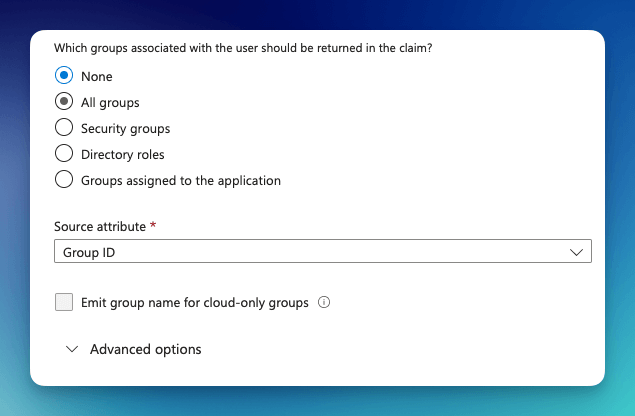
Here you can configure which groups will be returned with the SAML response.
-
Select Groups assigned to the application
-
Change the Source attribute to Cloud-only group display names
Depending on your Azure subscription level, Cloud-only group display names may not be available. If this is the case, see Step 4: Optional: Map Manual Group Claims.
Under the SAML Certificates, make note of the App Federation Metadata Url, as that will be needed in the next step.
Step 3: Add the Identity Provider in Amazon Cognito
Now, we will need to configure Amazon Cognito to connect to Microsoft Entra ID.
Add Identity Provider
We need to add Microsoft Entra ID as an Identify Provider in Amazon Cognito.
Open the AWS Console and Launch the CloudShell service.
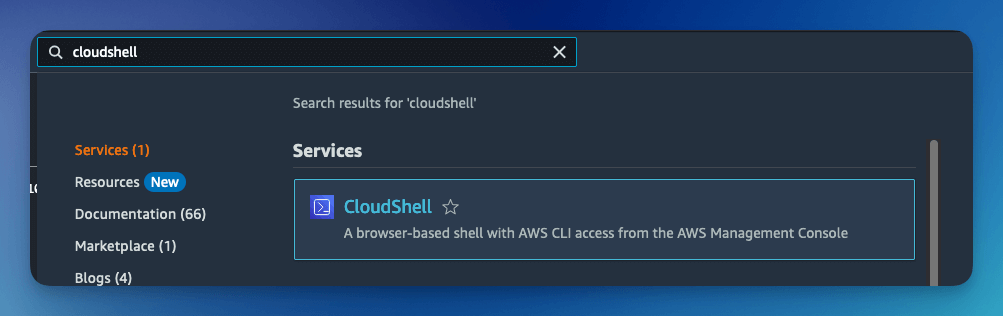
Once the CloudShell command prompt opens, use the AWS CLI to add a custom attribute. This attribute will contain the group claims attribute.
aws cognito-idp add-custom-attributes \
--user-pool-id <CognitoUserPoolId> \
--custom-attributes Name=groups,AttributeDataType="String"
Once again, using the AWS CLI, create the SAML identify provider:
aws cognito-idp create-identity-provider \
--user-pool-id <CognitoUserPoolId> \
--provider-name=azureidp \
--provider-type SAML \
--provider-details MetadataURL=<App Federation Metadata Url> \
--attribute-mapping email=http://schemas.xmlsoap.org/ws/2005/05/identity/claims/emailaddress,custom:groups=http://schemas.microsoft.com/ws/2008/06/identity/claims/groups
Cognito Managed login
You now need to configure Amazon Managed login. Amazon Cognito Managed login provides a URL connection between Amazon Cognito and Microsoft Entra ID.
To configure Cognito Managed login, see Amazon Managed Login tutorial.
Step 4: Optional: Map Manual Group Claims
When configuring Group Claims in Entra, if you are unable to select the Cloud-only group display names because of your configuration or your account settings, Azure will send the Group ID instead of the Group Name. The FormKiQ Pre token generation trigger can be configured to map the Group ID to the correct Group Name.
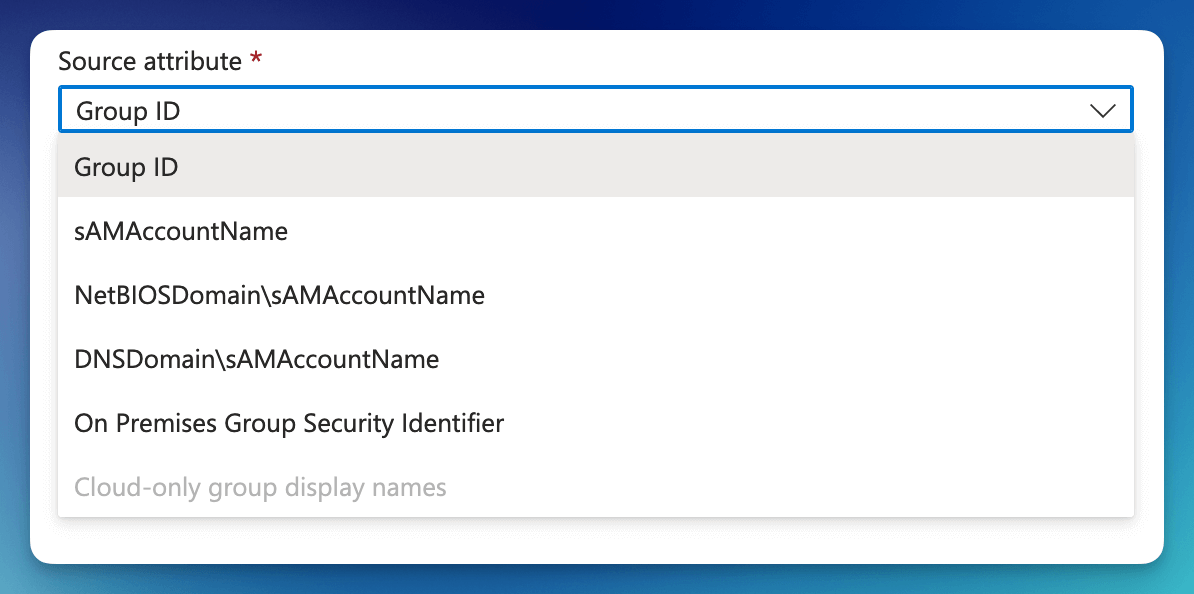
The Pre token generation trigger Lambda function supports adding a ROLE_MAPPING environment variable that can map the Group ID to Group Name.
To configure the ROLE_MAPPING environment variable:
First, find goto the Lambda console and search for the azure Lambda function.
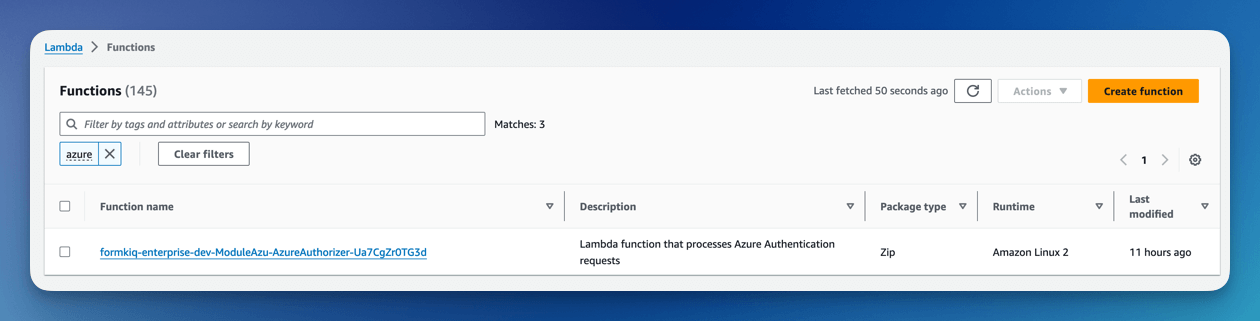
Click on the Lambda function and select the Configuration tab.
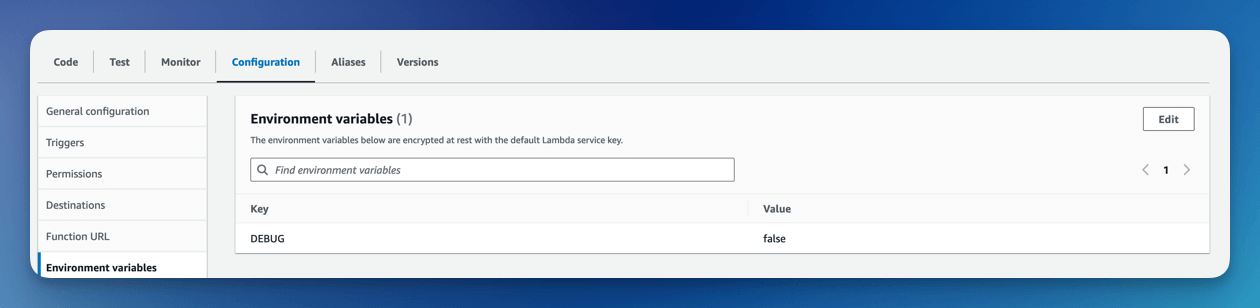
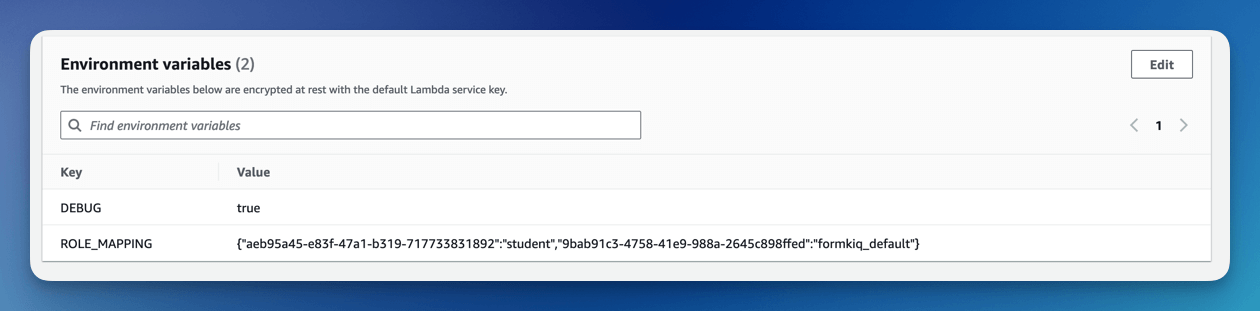
To create the role mapping, add an environment variable named ROLE_MAPPING. The value is a JSON map, where the key is the Group Id and the value is the Group Name.
{  "aeb95a45-e83f-47a1-b319-717733831892":"student",
   "9bab91c3-4758-41e9-988a-2645c898ffed":"formkiq_default"
}
- (asterisk) can be used as the Group Id to indicate all groups
Verify the Result
Open the FormKiQ console and use the Single Sign-On login option. Confirm the user can authenticate through Microsoft Entra ID and receives the expected FormKiQ access based on group membership.
Clean Up
Remove test users, test group assignments, or temporary role mappings that are no longer needed.
Troubleshooting
| Problem | Likely cause | What to check |
|---|---|---|
| Cognito redirects fail | Reply URL or Cognito domain is incorrect. | Confirm the Entra Reply URL uses /saml2/idpresponse. |
| User signs in but has wrong access | Group claims are missing or mapped incorrectly. | Confirm Entra group claims and Cognito custom:groups mapping. |
| Cognito provider creation fails | Metadata URL or user pool ID is incorrect. | Recheck the App Federation Metadata URL and CognitoUserPoolId. |